How to edit YouTube Shorts that get watched
A Short has one job: stop the swipe, then earn every next second. This is the edit I run on every vertical video, from the first frame to the loop.
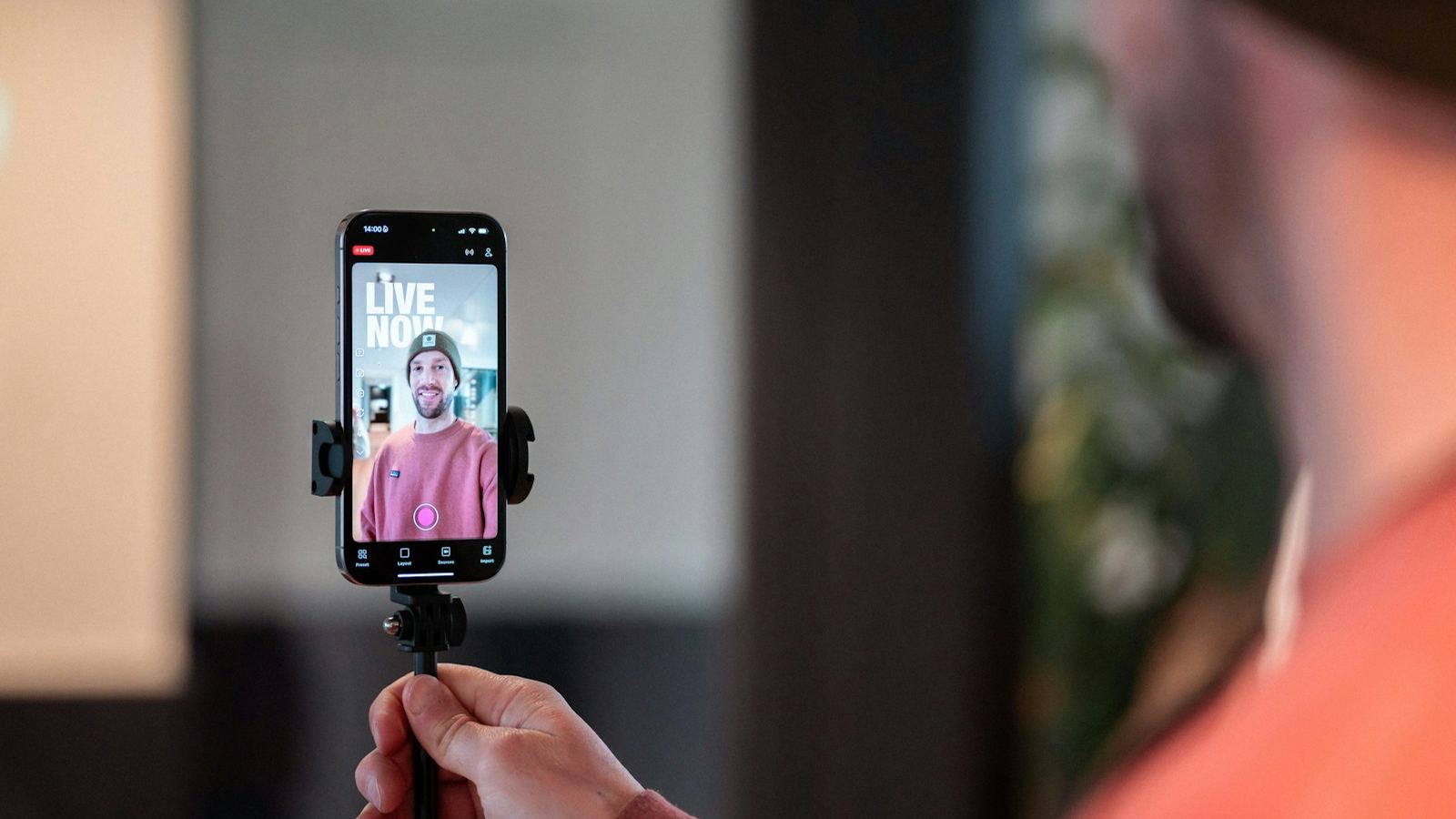
Shorts are judged faster than any other format on YouTube. There is no thumbnail doing the work and no title most viewers read first: the video starts playing and the viewer decides with their thumb. That changes how you edit. Every choice below comes back to one question: does this second give someone a reason to watch the next one?
1. Pick the right length for the idea
Since October 2024, YouTube Shorts can run up to three minutes. That is a ceiling, not a target. A short video that people watch to the end, or replay, is usually worth more than a long one they abandon halfway.
- 15–35 seconds for a single joke, tip, reveal or reaction.
- 35–60 seconds for a mini story or a quick tutorial with a clear payoff.
- Over a minute only when the story genuinely needs it, and the pacing stays as tight as a 30-second cut.
A good test: if you can cut ten seconds and the video still makes sense, cut them.
2. Put the hook in the first frame, not the first second
The opening frame is effectively your thumbnail. Start on movement, a face mid-sentence, or the most interesting visual in the whole clip. Never open on a logo, a black frame, or someone taking a breath before they speak.
Then make the first line do the work: state the surprising claim, show the result first, or ask the question the video answers. There are ten formats I use in this guide to video hooks.
3. Cut tighter than feels natural
Remove every pause, breath, "um" and restart. Jump cuts are normal in vertical video, so don't hide them. Then watch it back once at full speed with the sound on, and restore any beat where a joke or a key point needs a moment to land.
- Punch in 10–20% on alternate cuts so jump cuts feel intentional.
- Change something visually every few seconds: a zoom, b-roll, a graphic, a new angle.
- Keep the subject centred. The Shorts player covers the bottom and right edges with the title, buttons and channel name.
4. Add captions people can read at a glance
Many people watch Shorts with the sound off, at least at first. Captions keep them watching long enough to turn it on. Keep them short (two to four words per screen), large, high-contrast, and placed in the middle third of the frame, clear of the interface. The full styling rules are in the animated captions guide.
5. Use sound to set the pace
- Clean the voice first: noise reduction and a little compression so it stays clear on phone speakers.
- Cut to the beat of the music when there is no dialogue driving the edit.
- Add small sound effects on text pops, zooms and transitions. They make an edit feel faster without adding cuts.
- Keep music under the voice. If you have to choose, the words win.
6. Build the loop
When a Short ends, it replays. If the last line flows back into the first, a viewer can be a few seconds into the second play before they notice. Two simple ways to do it:
- End mid-sentence on a line that completes with your opening words.
- End on the same visual you opened with, so the cut back to the start is invisible.
Avoid "thanks for watching" or "follow for more" outros. They are an exit sign.
7. Export settings for Shorts
- Aspect ratio: 9:16 vertical (1080×1920 is the standard).
- Frame rate: the same as you filmed, usually 24, 25, 30 or 60 fps.
- Codec: H.264 or H.265 with a generous bitrate. Upload quality is what YouTube compresses from, so don't squeeze the file.
A 60-second checklist before you post
- Would the first frame stop you mid-scroll?
- Is there any pause, restart or throat-clearing left?
- Can you understand it with the sound off?
- Is everything important clear of the bottom and right edges?
- Does the ending loop, or at least not announce itself?
If you'd rather send the footage and get finished Shorts back, that is exactly what my Shorts, Reels and TikTok editing service does.