How to edit a YouTube video, step by step
The order I edit in, the settings I use and the checks I run before upload, in any editor from DaVinci Resolve to CapCut. Short answer: build a rough cut, tighten it with jump cuts, add B-roll and graphics, mix the sound, colour correct, add captions, then export with YouTube-friendly settings.
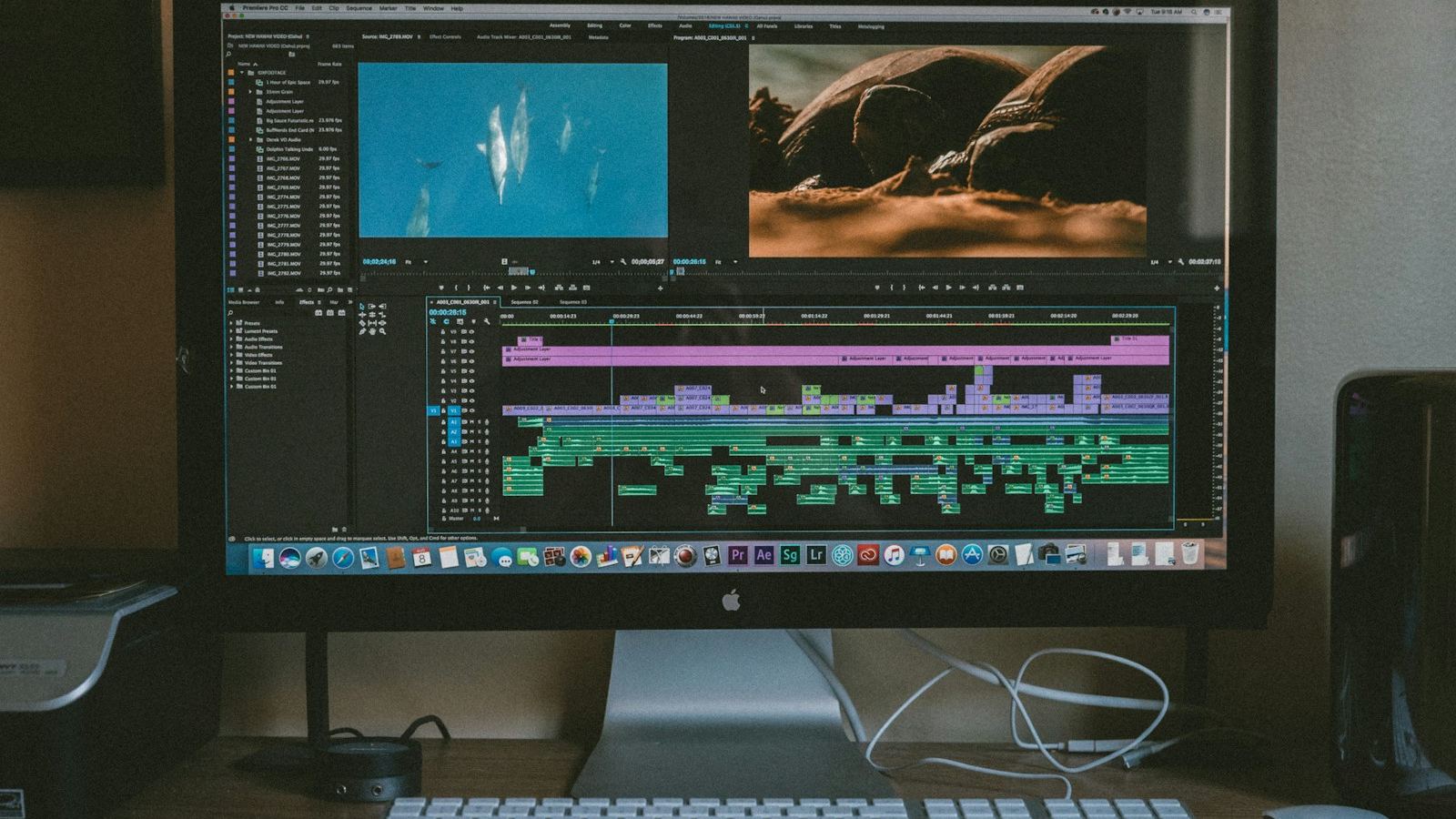
To edit a YouTube video, work in passes: organise your footage, build a rough cut of the best takes, tighten it with jump cuts, cover the talking with B-roll and on-screen text, clean and mix the audio, correct the color, add captions, then export an H.264 MP4 at the resolution you filmed and upload it through YouTube Studio.
Below is how I do each pass on real channels, with settings that work in DaVinci Resolve, Premiere Pro, Final Cut Pro or CapCut. The order matters more than the software.
What do you need before you start editing?
- One project folder per video, with subfolders for footage, audio, music, graphics and exports. Copy the card to this folder before you open the editor, and keep a backup on a second drive.
- A timeline that matches your footage. If you filmed 4K at 25 or 30 fps, set the timeline to that frame rate. Mixing frame rates on one timeline causes stutter that no export setting fixes.
- Proxies if playback stutters. 4K H.265 from phones and mirrorless cameras is hard to scrub. Generate proxies (half resolution is plenty) and switch back to the originals for export.
- A script or outline. Even a five-line outline tells you which takes you need and which tangents to drop.
If you are still choosing software, I compare the main options in the best video editing software for YouTube.
Step 1: How do you build the rough cut?
The rough cut is where the video gets its shape. Drop all your talking footage on the timeline and watch it once at normal speed. Mark the best take of each point, then delete everything else: false starts, repeated lines, the "let me try that again" and anything that does not serve the title.
Do not polish anything yet: no zooms, music or color. A rough cut that is too long but in the right order is the goal.
Text-based editing speeds this up. Premiere Pro and DaVinci Resolve can both transcribe the clip, and deleting a sentence in the transcript removes it from the timeline. I use it to find the strongest version of a line quickly, then check every cut by ear.
Step 2: How do you use jump cuts without it feeling choppy?
A jump cut removes a pause or a stumble inside one continuous shot, so the speaker "jumps" slightly. On YouTube, viewers accept it completely. It is the single biggest pacing tool for talking-head videos.
- Cut on the breath, not mid-word. Trim to just before the next word starts, and keep two to four frames of room so consonants are not clipped.
- Hide big jumps with a punch-in. Scale the second clip to 110 to 120 percent so the cut reads as a camera change. Film in 4K, deliver in 1080p, and you can punch in without losing sharpness.
- Leave some air. Cutting every breath makes speech sound robotic. Keep a beat after a joke, a question or a key point.
Step 3: How do you structure the video so people keep watching?
With the dead air gone, look at the order. Recorded order is rarely the best order. I move sections so each one starts stronger than the last one ended, and I make sure the first 30 seconds do three things: confirm the title, show or promise the payoff, and skip the greeting.
Logo stings, "before we start" and channel updates go to the end or out entirely. If you want to go deeper on this, my guides on video hooks and YouTube audience retention cover how to read the retention graph and fix the opening.
Step 4: How do you add B-roll, text and graphics?
A single static shot is where viewers drift. On talking sections I aim for a visual change every three to five seconds. That does not mean effects. It means something new to look at that supports what is being said.
- B-roll over anything you describe: the product, the place, the screen, the process. Put it on track 2 above the talking clip so the audio keeps running underneath.
- On-screen text for numbers, names and the one line you want remembered. Keep it short enough to read twice.
- Screen recordings for tutorials, zoomed in on the part that matters. Nobody can read a full desktop on a phone.
- Simple transitions. A straight cut is right 95 percent of the time. Save whooshes and wipes for real section changes.
J-cuts and L-cuts help B-roll feel natural: let the audio of the next shot start a few frames before the picture (J), or let the speaker's audio continue over the B-roll after you cut away (L).
Step 5: How do you edit the audio?
Viewers forgive rough visuals far sooner than bad sound, so audio gets a full pass of its own.
- Clean the voice. Light noise reduction, a high-pass filter around 80 Hz to remove rumble, gentle EQ, and a de-esser if the "s" sounds are sharp.
- Even out the level. A compressor with a 3:1 ratio and a few dB of gain reduction keeps quiet and loud lines closer together.
- Duck the music. Music should sit roughly 15 to 20 dB under the voice while someone speaks, and come up in the gaps.
- Add sound design. Small whooshes on text pops, a hit on a reveal, a change of music when the topic changes.
- Check loudness. YouTube turns loud uploads down to about -14 LUFS, so I mix to around -14 LUFS integrated with true peaks below -1 dBTP. Louder buys you nothing.
Use music you have a licence for. Unlicensed tracks can trigger Content ID claims that take your ad revenue.
Step 6: How do you color correct YouTube footage?
Correction comes before style. First fix exposure and white balance so skin looks like skin, then match shots from different cameras so a cut does not change the color of the room. Use the scopes, not just your eyes: keep skin tones near the skin-tone line on the vectorscope and keep highlights from clipping on the waveform.
Only after that add a look, and keep it subtle. If you shoot log footage, convert it to Rec.709 first, which I explain in Rec.709 color grading.
Step 7: Should you add captions to YouTube videos?
Yes, in two forms. Upload an SRT caption file in YouTube Studio for accessibility and search, because YouTube's auto-captions misspell names and jargon. Burned-in captions are optional on long-form; I use them for key lines and keep full animated captions for Shorts. Check every name and number before you export, because a wrong caption on screen is a credibility problem.
Step 8: What are the best export settings for YouTube?
YouTube re-encodes everything, so give it a clean, high-bitrate file:
- Format: MP4, H.264 (or H.265 if your machine is slow at H.264).
- Resolution and frame rate: the same as your timeline. Do not convert 25 fps to 30.
- Bitrate: YouTube recommends about 8 Mbps for 1080p at 24 to 30 fps and 35 to 45 Mbps for 4K. I export a little higher for headroom.
- Audio: AAC, 48 kHz, stereo, 320 kbps or higher.
A 4K upload gets a higher-quality encode, so even the 1080p version viewers watch looks cleaner.
Step 9: What should you check before you upload?
- Watch the full export once, start to finish, on a phone as well as a monitor.
- Listen on headphones for clicks, cut-off words and music that is too loud.
- Check every caption, name, number and on-screen link.
- Confirm the first ten seconds match the title and thumbnail.
- Write chapters: the first timestamp must be 0:00, and you need at least three, each at least 10 seconds long.
Then upload in YouTube Studio with the title, thumbnail, captions and end screen. Small fixes after posting can be made in Studio's Editor.
Can you edit a YouTube video for free or on your phone?
Yes. DaVinci Resolve is free on Windows, Mac and Linux and handles everything in this guide, including color and audio. On a phone or iPad, CapCut covers cutting, text, music and captions well enough for simple talking videos and vlogs. The steps are the same on any device; a computer just makes long timelines, audio cleanup and color far easier.
How long should the edit take?
Several hours for a simple 10-minute talking-head video, much longer for a heavily produced one. I break it down in how long it takes to edit a YouTube video.
If you'd rather hand it off, that is what I do for YouTube channels. You can start with a single $95 test cut, and my guide to hiring a YouTube video editor explains how to evaluate any editor, including me.
YouTube editing FAQ
Can you edit a YouTube video after posting it?
Yes. In YouTube Studio, open Content, choose the video and select Editor. You can trim the start or end, cut out sections, blur parts of the frame, add music from the audio library and change the end screen, and the URL, views and comments stay the same. You cannot add new footage; for that you have to upload a new video.
What is the best free software to edit YouTube videos?
DaVinci Resolve is the strongest free option. It runs on Windows, Mac and Linux and includes editing, color, audio and export tools with no watermark. CapCut is the easier free choice on a phone or for short, simple videos.
What are jump cuts in video editing?
A jump cut removes a pause or mistake from inside one continuous shot, so the speaker appears to jump slightly forward in time. On YouTube talking-head videos, jump cuts are the main way to remove dead air and keep the pace up.
What is B-roll in video editing?
B-roll is supporting footage placed over the main shot, or A-roll, while the original audio keeps playing. It shows what the speaker is describing, such as a product, a place or a screen, and gives viewers something new to look at.
What export settings should I use for YouTube?
Export an MP4 using H.264 at the same resolution and frame rate as your timeline, with AAC audio at 48 kHz. YouTube recommends about 8 Mbps for 1080p at 24 to 30 fps and 35 to 45 Mbps for 4K, and a 4K upload gets a higher-quality encode.
Can I edit a YouTube video that is not mine?
Only with the owner's permission or a licence. Downloading, editing and re-uploading someone else's video without permission can infringe their copyright and lead to claims or strikes on your channel. Edit footage you filmed, footage you are licensed to use, or footage a client gives you.